Technical Issues - Updating HASP Security ID
Modules
HASP Security ID Modules may be remotely programmed. This is
necessary, for example, if module memory has been erased by the powerful
inspection
machines now utilized by customs agents. (It seems that parallel port modules
are more susceptible than USB.) Remote programming also lets
users add new FilmStar programs such as MONITOR or MEASURE without having to return
modules to FTG Software.
Part 1 - Obtaining Module ID
Suppose FilmStar was installed correctly (with HASP selected),
but the module is not programmed. At startup the following is displayed

Click OK to arrive at the following

and Retry to reach the FilmStar Configuration
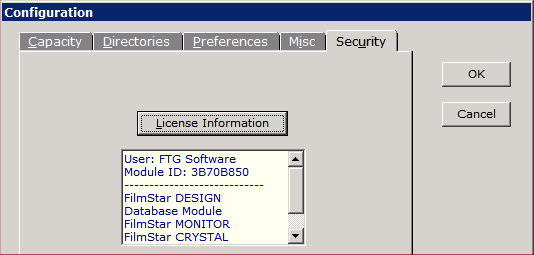
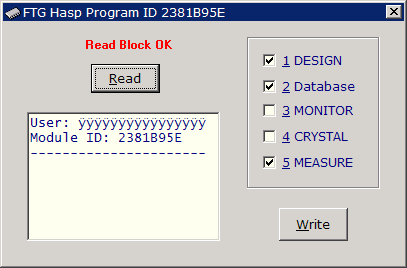
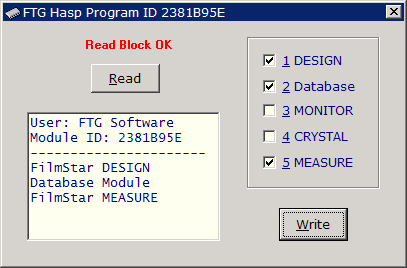
screen. Click HASP Information; if the following appears, the HASP
drivers have been installed correctly, but programmable memory has been
erased. (If the Attach FTG Software message box appears once again,
either the module is not attached or, more likely, drivers were not installed.)

An alternative method for obtaining Module ID's:
1. Download
www.ftgsoftware.com/files/customer.exe
&
www.ftgsoftware.com/files/customer.hlp
Store these program in a separate directory, say c:\winfilm\module. (Keep
this program on your hard disk, as you will need it later.)
2. Attach the module to your parallel or USB port and run customer.exe (double click in Explorer or use Start...Run). Click button
Get ID to obtain the module's HASP ID code number. This is the same ID obtained in a FilmStar Configuration
dialog.

You can record the ID or save it to a text file which will be similar to the one
shown below when examined in Notepad. Hint: if programming more than one
module, label each with a yellow sticky note!
VENDOR Remote Update System Utility Version 3.11
Aladdin Knowledge Systems Ltd.(c) 1999
-IDnum
7C325FC4
-DiRect
-HaspType
memo
3. Repeat for additional modules. E-mail us the text files as an attachment
or paste the ID code (i.e. 7C325FC4) in the body of your message for each module.
If you cannot obtain an ID number, try rebooting your computer. Most problems occur when
Win NT/2000/XP users do not heed warnings about installing with Administrator privileges.
Part 2 - Programming the Module
Once we receive your ID codes, we will generate and send remote programming
batch and data files as e-mail attachments.
1. If not done previously, download
www.ftgsoftware.com/files/customer.exe
& www.ftgsoftware.com/files/customer.hlp.
Store these in a separate directory, say c:\winfilm\module.
2. When you receive our e-mail, transfer the attached files (*.bat, *.ftg)
to the same directory where you installed customer.exe.
3. Attach an ID Module to the parallel or USB port.
4. Run a batch file (*.bat) from the same directory by double clicking the file
name in Windows Explorer or using Start...Run. Remount a new module and
repeat as required with another batch file. If you have more than one
module, we'll label the batch files accordingly.
5. Finally, run FilmStar DESIGN and verify that your software has been enabled by
clicking HASP Information in File Configuration Security.
This
is very important as there is no error message if you program a
module with the incorrect codes.
6. If there are any problems please recheck HASP ID's and contact us via
e-mail or telephone.
Back to Technical Issues
|